
Fixing Frame Gen Shadow Flickering and Optimizing Anti-Aliasing in Black Flag Resynced
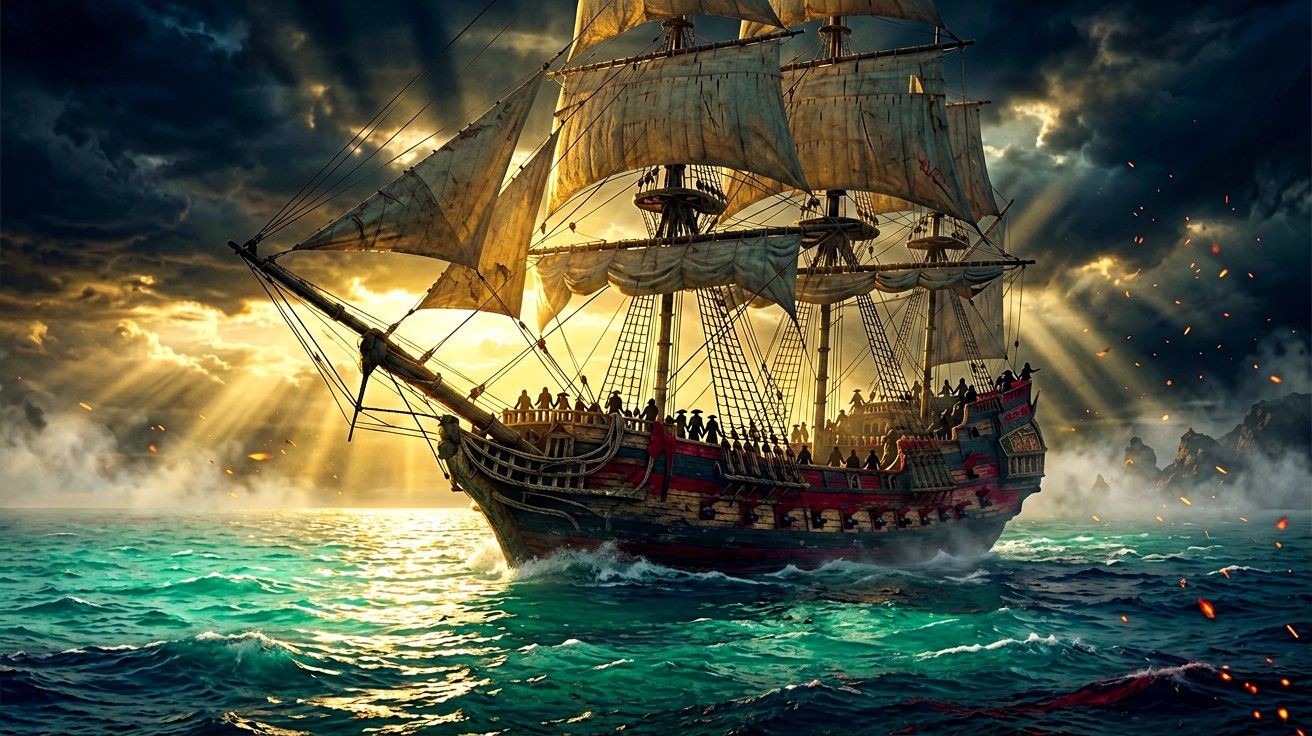
Ubisoft is currently celebrating its 40th anniversary with a massive franchise sale across multiple storefronts, and this event marks the very first time Assassin’s Creed Black Flag Resynced has received an official discount. At 10% off on Steam, a fresh wave of aspiring pirates is currently stepping onto the deck of the Jackdaw to experience the golden age of piracy. While the completely overhauled Anvil Engine delivers some of the most breathtaking Caribbean vistas in gaming history, the PC port is not without a few technical quirks that require manual tweaking.
Over the past 24 hours, community forums and social media have been flooded with reports regarding a highly distracting visual glitch. PC players utilizing modern upscaling technologies have noticed that enabling Frame Generation causes severe shadow flickering—a phenomenon the community has humorously dubbed “shadow twerking.” Furthermore, new players jumping in are fiercely debating the merits of running the game with an Upscaler set to Quality versus using Native Anti-Aliasing (Native AA).
This comprehensive tuning manual will break down exactly why these graphical anomalies are happening, how you can fix the flickering shadows, and what the optimal anti-aliasing settings are for maintaining both a crisp image and a stable framerate during intense encounters.
The Return of the Jackdaw: A First Sale Influx
Before addressing the technical hurdles, it is worth noting the significance of the current Ubisoft 40th Anniversary sale. Assassin’s Creed Black Flag Resynced launched in July to critical acclaim, breaking series records on Steam and revitalizing the beloved naval sandbox. Despite its overwhelming success, the full MSRP price tag remained a sticking point for some PC gamers who prefer waiting for early patches to iron out launch bugs.
Now, with the game available at roughly 10% off during the publisher’s anniversary event, the barrier to entry has finally been lowered. This sudden influx of new hardware configurations accessing the Caribbean sandbox has predictably exposed a few edge-case rendering issues. As players attempt to maximize their graphical fidelity to enjoy the pristine tropical waters and dense jungle environments, the limits of current-generation upscaling are being tested. If you happen to be playing on handhelds, you might have an easier time, as the title was previously confirmed as Steam Deck verified, but desktop users pushing 1440p and 4K resolutions need to carefully balance their graphical sliders.
Understanding and Fixing “Shadow Twerking”
The most prominent issue currently circulating within the PC community is the Frame Generation shadow glitch. Players across various hardware configurations have reported that when Frame Generation is enabled, shadows cast by complex geometry—such as the intricate rigging of a ship, the leaves of palm trees in Havana, or even Edward Kenway’s own character model—begin to jitter and flicker violently. This rapid oscillation completely breaks immersion, especially during quiet, sun-drenched moments on the open ocean.
Why is this happening? Frame Generation works by analyzing two consecutive rendered frames and using AI to generate an intermediate frame, effectively doubling your framerate. However, the newly upgraded Anvil Engine uses highly dynamic, high-resolution cascaded shadow maps. When the wind moves the ship’s sails and the sun’s angle changes simultaneously across the rolling waves, the Frame Generation algorithm struggles to accurately predict the exact placement of these high-frequency shadow details. The resulting interpolated frame places the shadow in slightly the wrong position, causing the rapid flickering effect observed by the community.
How to Fix the Shadow Glitch:
- Disable Frame Generation: The most immediate and foolproof fix is to simply toggle Frame Generation off in the display settings. Community testing has confirmed that with FG disabled, the shadows return to a completely stable, intended state.
- Lower Shadow Quality: If you absolutely need Frame Generation to maintain a playable framerate, try lowering your Shadow Quality setting from Ultra/Very High down to High or Medium. Lower-resolution shadows have softer edges, making the AI’s interpolation errors much less noticeable to the human eye.
- Cap Your Framerate: Sometimes, erratic frame pacing exacerbates the prediction errors of Frame Generation. Capping your framerate to a stable 60 or 90 FPS via your GPU control panel can provide the engine with a more consistent rhythm, reducing the severity of the shadow flickering.
If you are dealing with other stuttering issues, particularly on older graphics cards, reviewing our earlier performance guide is highly recommended. For more details on how frame generation interacts with specific GPU architectures, see our RTX 30 series mod guide.
Native AA vs. Upscaler Quality: The Ultimate Debate
The second major point of discussion for new players optimizing their settings is the choice of anti-aliasing. The game offers traditional upscaling (DLSS, FSR, XeSS) with various presets (Quality, Balanced, Performance), alongside Native Anti-Aliasing options (such as DLAA or FSR Native).
The Case for Native AA In Assassin’s Creed Black Flag Resynced, visual clarity is paramount. You spend a massive portion of your playtime staring at the horizon from the helm of your ship. The Jackdaw is covered in thin, complex geometry: ropes, netting, masts, and flags. When you use an Upscaler on “Quality” mode, the game is actually rendering internally at a lower resolution (usually around 67% of your target resolution) and then mathematically reconstructing the rest.
While modern upscalers are incredibly advanced, they still occasionally struggle with thin lines against bright backgrounds (like ropes against the Caribbean sky), resulting in localized shimmering or ghosting artifacts. Native AA, on the other hand, renders the game at exactly 100% of your monitor’s native resolution, but it still applies the superior, AI-driven anti-aliasing logic of DLSS or FSR to smooth out jagged edges. Community feedback overwhelmingly suggests that if your graphics card has the headroom, Native AA provides a drastically superior image. The ropes look solid, the horizon remains sharp, and the distant colonial forts retain their intricate architectural details without turning into a blurry mess.
The Case for Upscaler Quality The reality of PC gaming is that not everyone has a flagship GPU. Running Native AA at 1440p or 4K is extremely taxing on the system. If you had to disable Frame Generation to fix the shadow flickering bug mentioned earlier, your framerate likely took a massive hit.
In this scenario, switching your setting to Upscaler Quality is the best compromise. You will regain a substantial chunk of performance—often enough to bring you back above the standard 60 FPS threshold—while maintaining an image that is still very close to native. The slight shimmering on the ship’s rigging is a small price to pay for fluid and responsive naval combat.
Optimal PC Graphics Settings for the Anvil Engine
For players who want to bypass the trial and error and simply enjoy the game, here is a curated list of graphics settings designed to strike the perfect balance between visual majesty and stable performance, specifically tailored to mitigate current engine bugs.
- Anti-Aliasing: Native AA (if you can maintain 60+ FPS) OR Upscaler Quality (if struggling for frames).
- Frame Generation: Off (until developers officially patch the shadow flickering interpolation issue).
- Shadow Quality: High. There is a massive performance penalty for pushing shadows to Ultra, and as discussed, lower shadow resolution actually helps mask minor rendering artifacts.
- Volumetric Clouds: High. The Caribbean skies are beautiful, but Ultra volumetric clouds will drain your GPU resources rapidly. High provides 90% of the visual splendor at a fraction of the hardware cost.
- Water Quality: Ultra. Do not compromise here. The ocean physics and water shaders are the crown jewels of Black Flag Resynced. You want the waves, storms, and sea foam to look as realistic as possible while sailing.
- Environment Details: High. This controls the draw distance of the lush foliage and colonial buildings.
- Ray-Traced Reflections: Low or Off. Standard screen-space reflections (SSR) do a fantastic job on the ocean surface. Ray tracing is incredibly demanding and provides diminishing returns in bright, outdoor maritime environments.
Alternative Platforms: Mac and Linux Workarounds
Interestingly, the PC optimization discussion extends beyond Windows. The community is actively testing the boundaries of the DX12 engine on alternative operating systems. Players have successfully managed to run Assassin’s Creed Black Flag Resynced locally on Apple Silicon (M1 Pro and above) using Mac compatibility layers like Hrava. While performance varies, reaching a stable framerate on macOS without relying on cloud streaming is a massive achievement for that ecosystem.
Similarly, Linux users navigating the latest Proton builds have encountered specific engine quirks. Some have reported frame pacing irregularities and graphical glitches similar to the shadow flickering seen on Windows. If you are playing on a Linux desktop or tinkering with Steam Deck configurations, ensuring you are on the absolute latest version of Proton Experimental or switching to a community GE-Proton build is vital for stability.
Moving Forward
With the influx of new captains arriving via the Ubisoft 40th Anniversary sale, the spotlight is firmly back on Black Flag Resynced. While the “shadow twerking” Frame Generation bug is undoubtedly an annoyance, the available workarounds are highly effective. By prioritizing Native AA for crisp rigging and managing your shadow and cloud settings responsibly, you can ensure your voyage across the West Indies is as breathtaking as intended. Keep an eye on official developer channels, as the team is likely gathering these hardware reports for a future title update.
Sources
← Back to News