
Black Flag Resynced Update 1.005.034: PS5 Flicker Fixes, Linux DLSS Issues, and Red Bull Sail
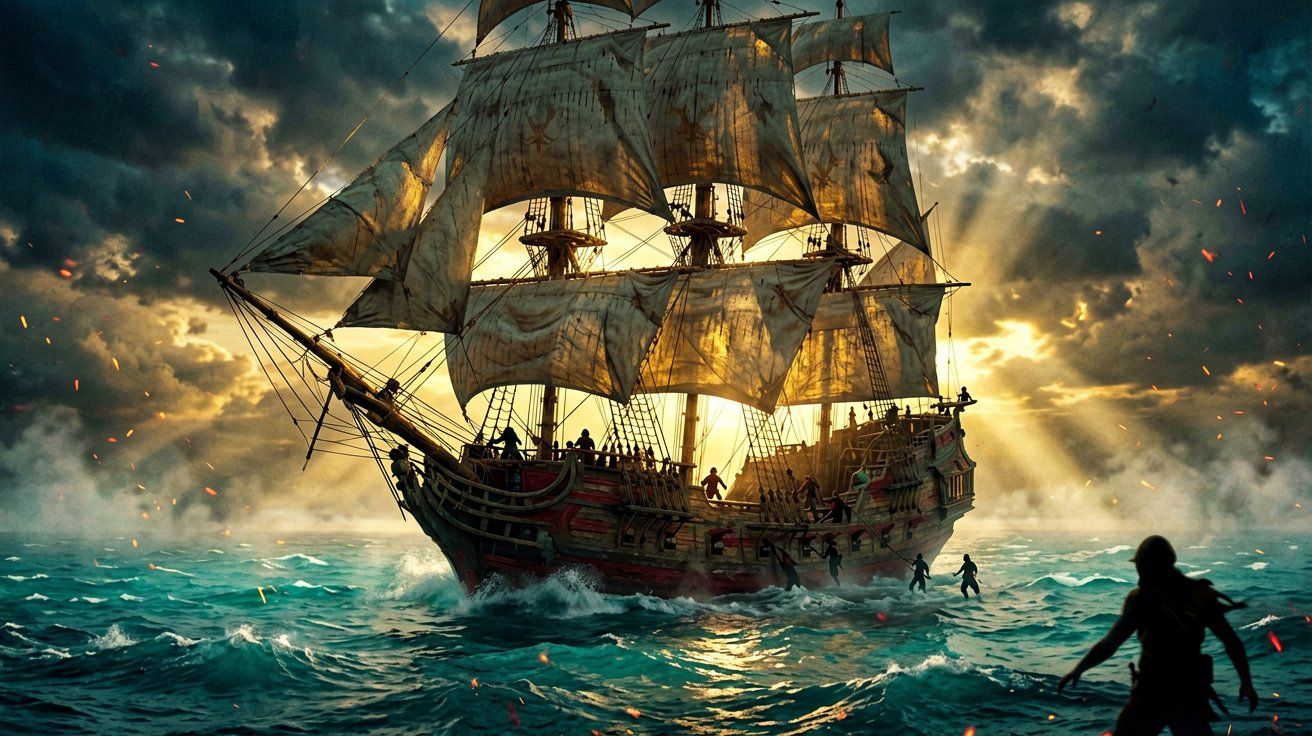
Ubisoft Singapore’s total overhaul of Edward Kenway’s Caribbean adventure has enjoyed a remarkably successful launch window, quickly smashing franchise sales records and securing a massive player base across all platforms. However, alongside the visual splendor of the Anvil engine and the addictive loop of naval combat, a few technical barnacles have clung to the hull.
Currently, players on PlayStation 5 are reporting highly distracting screen flicker issues, while PC users migrating to Linux are bumping into severe framerate locks tied to Frame Generation. Fortunately, relief appears to be on the horizon. Recent backend data scrapes indicate that a new client patch—version 1.005.034—has been uploaded to the PlayStation servers.
While we wait for official patch notes, we have put together the details on the current display bugs, how to protect your Ubisoft account from temporary lockouts while troubleshooting on Linux, and a quick detour on how to grab some exclusive cosmetics including the Red Bull promotional sail and the elegant Politician Outfit.
Update 1.005.034 Spotted on the PlayStation Backend
Dataminers monitoring the PlayStation Network backend have officially flagged a new update for the game, bearing the version number 1.005.034. Historically, when a patch hits the Sony backend, deployment across PS5, Xbox Series X|S, and PC follows within a matter of days.
If you look back at our coverage of the previous updates, such as the major bug squashing in Title Update 1.0.4, the development team at Ubisoft has been maintaining a rapid cadence to address community feedback. Title Update 1.0.4 tackled the persistent weather bug and smoothed out several quest scripting errors, but it did not entirely resolve the hardware-specific visual anomalies that have surfaced since the late-July performance optimizations.
We expect this incoming 1.005.034 update to specifically target rendering pipeline issues on consoles, improve stability for high-framerate modes, and potentially integrate the newer upscaling SDKs that the community has been heavily debating. Until Ubisoft publishes the finalized changelog, we can only extrapolate based on the exact fixes the community is asking for. However, the timing aligns perfectly with the most vocal complaints currently dominating the official support forums and Reddit.
Diagnosing and Mitigating PS5 Screen Flickering
One of the most disruptive technical glitches currently affecting the console player base is a persistent screen flicker on the PlayStation 5. According to multiple community reports, this flickering manifests as rapid black flashes or localized texture strobing, particularly during high-contrast scenes such as sailing into a vibrant sunset or navigating the dense, shadow-heavy jungles of the Caribbean.
For most PS5 games that exhibit this specific type of HDMI handshake or bandwidth issue, the standard troubleshooting step is to navigate to the console’s screen settings and lower the “4K Video Transfer Rate” from Automatic to -1 or -2. This adjustment forces the console to use 4:2:2 or 4:2:0 chroma subsampling, effectively reducing the bandwidth required to push the 4K signal through the HDMI cable.
Curiously, players are reporting that this tried-and-true method is completely failing for Black Flag Resynced. The flickering reportedly persists regardless of the transfer rate setting. This suggests the root cause is not an HDMI bandwidth limitation or a faulty cable, but rather an engine-level rendering issue tied to the game’s dynamic resolution scaling or its implementation of Variable Refresh Rate (VRR).
While we await the 1.005.034 patch, which will presumably address this directly, you can try a few alternative workarounds if the flickering is making the game unplayable. First, try disabling VRR entirely within the PS5 system settings. If that fails, toggle the game’s internal graphics mode from ‘Fidelity’ to ‘Performance’ or vice versa, as the alternate rendering targets might bypass the specific buffer issue causing the strobe effect. Finally, ensure your television or monitor has the latest firmware installed, as display manufacturers frequently push silent updates to correct VRR incompatibilities.
Linux and Steam Deck Performance: The DLSS Frame Generation Trap
On the PC side, the situation is equally complex, particularly for users running Arch Linux or Valve’s SteamOS on the Steam Deck. We already know the game performs admirably on portable hardware, as detailed in our Console Performance Profiles coverage, but desktop Linux gamers utilizing high-end Nvidia hardware (such as the RTX 4070 Ti Super) are encountering a bizarre performance wall.
When attempting to utilize DLSS combined with Frame Generation via Proton, players are reporting that their framerate is hard-locking to a dismal 28 to 30 FPS. This occurs regardless of the underlying graphics settings—whether you drop the visual presets to low or push them to ultra, the frame output remains statically capped.
This behavior is strongly indicative of a desync between the Nvidia proprietary Linux drivers, the Proton translation layer (like GE-Proton11-3), and the game’s frame pacing logic. Frame Generation requires specific Nvidia Reflex integrations to minimize latency, and when running through Wine/Proton environments, this handshake frequently breaks, causing the engine to fallback to a failsafe refresh rate—often half of a standard 60Hz display container.
If you are troubleshooting this on Linux, there is a critical warning you must heed. Players attempting to fix the FPS lock by rapidly swapping between different versions of Proton (e.g., standard Proton Experimental, GE-Proton, etc.) are inadvertently triggering a third-party DRM lockout. Every time you switch the Proton prefix, Denuvo and Ubisoft Connect interpret this as a new hardware configuration. Hit the hidden limit (usually around five changes within a 24-hour period), and your account will be temporarily locked out of launching the game entirely.
For now, the safest play for Linux users is to completely disable Frame Generation in the display options and rely solely on standard DLSS upscaling, which correctly functions through the latest Proton layers and provides a stable, high framerate experience without risking an account lockout. For more standard Windows PC tweaking, refer to our PC Performance Guide.
Claiming the Exclusive Red Bull Jackdaw Sail
Moving away from the technical headaches, there is always room to maximize the aesthetic appeal of the Jackdaw. Ubisoft has partnered with various brands for the launch window, and one of the more prominent cross-promotions involves Red Bull.
Players can acquire a highly distinct, custom Red Bull-themed sail for their ship. This is not just a simple logo slap; the sail features a striking crimson, silver, and blue color palette that genuinely pops against the turquoise waters of the Caribbean, giving your vessel a distinctly aggressive profile when fully unfurled.
To claim this promotional cosmetic, you will need to look for specially marked Red Bull cans at participating retailers. These cans contain a unique alphanumeric code under the pull tab. Once you have the code, navigate to the official Ubisoft redemption website linked on the promotional can, log into your Ubisoft Connect account, and input the string. The next time you boot up the game and visit a harbormaster—or access the captain’s cabin—the custom sail will be waiting in your customization inventory. If you are looking to fully outfit your ship for endgame content, check out our broader Naval Hub for advanced ramming and hull upgrades.
How to Unlock the Politician Outfit
Finally, for those who prefer to customize Edward Kenway’s wardrobe, there is a very specific sartorial unlock that many players are completely overlooking: the Politician Outfit. Unlike the legendary armor sets tied to hunting templar keys or finding mayan stelae, the Politician Outfit requires you to invest your hard-earned wealth into your pirate utopia.
To add this refined, aristocratic suit to your collection, you must focus your resources on upgrading Great Inagua, your personal pirate hideout. Specifically, you need to funnel your plundered Reales into upgrading the local general store. Upgrading the store not only provides you with better prices and easier access to ammunition restocks, but it also triggers the availability of exclusive inventory.
Once the general store in Great Inagua reaches its final upgraded tier, the Politician Outfit will be added to the vendor’s stock. Purchase it for a modest sum of Reales, and Edward can ditch the heavy leather and armor plating for a look more suited to a high-society masquerade in Havana. For more tips on maximizing your income and unlocking other hidden gear, browse our extensive Guides section.
We will be keeping a close eye on the deployment of Update 1.005.034. As soon as the official patch notes are published and the update goes live across all platforms, we will provide a complete breakdown of every fix, tweak, and hidden change.
Sources
← Back to News