
Assassin's Creed Black Flag Resynced: How to Fix Jackdaw Texture Glitches, Ghosting, and AMD Crashes
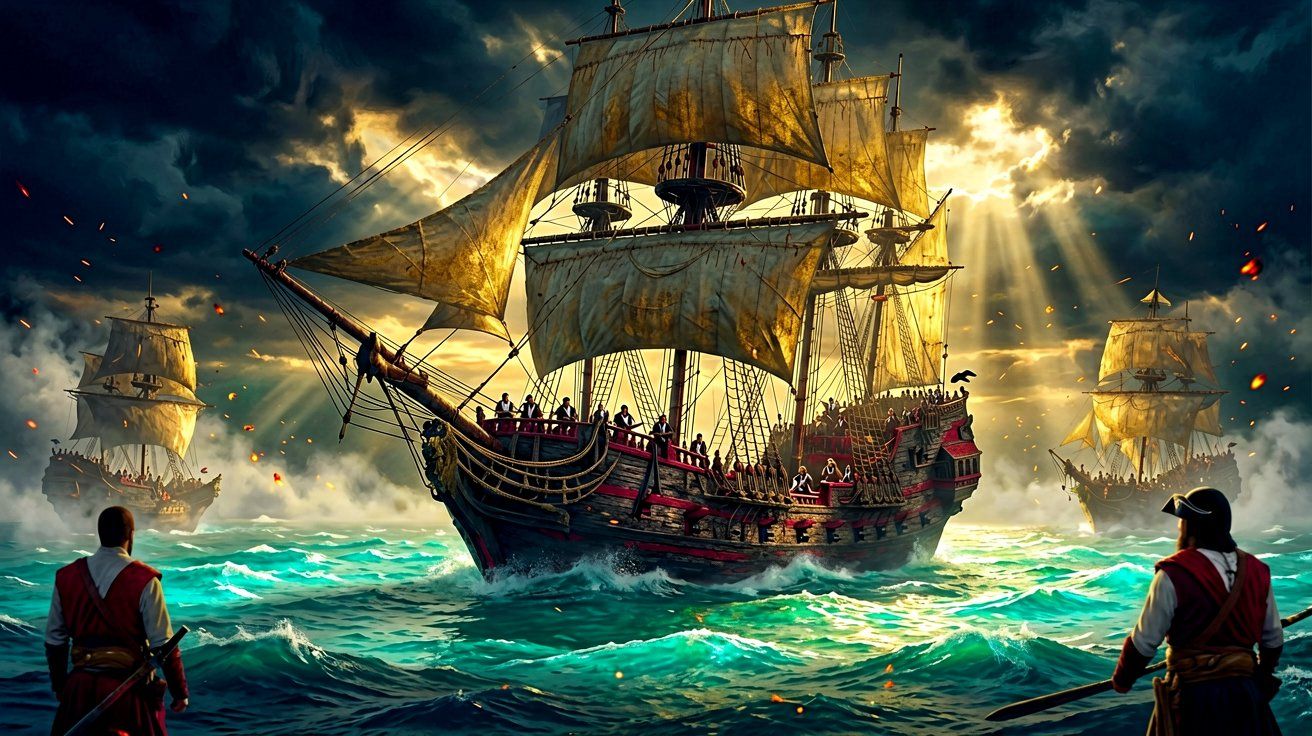
The massive commercial success of Assassin’s Creed Black Flag Resynced—which recently debuted at number one on the Canadian sales charts for July 2026—has brought an enormous influx of players back to the Caribbean. Millions are stepping back into the boots of Edward Kenway, eager to experience the golden age of piracy through the lens of Ubisoft’s completely rebuilt Anvil engine. The modernized technology allows for incredibly dense jungle foliage, highly reactive water physics, and staggering geometric detail on naval vessels.
However, pushing a seamless open world filled with simulated weather systems and intense naval combat can put a significant strain on PC hardware. As more players dive deeper into the campaign, tackle high-level forts, or upgrade their rigs, a few highly specific technical hiccups have emerged in late August.
If you are experiencing bizarre texture stretching on the Jackdaw, frustrating AMD driver crashes, or persistent ghosting on your gaming laptop, you are certainly not alone. The community has been hard at work isolating these problems. Below is a detailed breakdown of the most prominent recent graphical issues and the exact steps you can take to resolve them so you can get back to plundering galleons in peace.
How to Fix Jackdaw Texture Glitches and Stretching
One of the most visually alarming bugs currently affecting PC players occurs during massive naval engagements, most notably during the high-stakes assault on Fort Dry Tortugas. Players utilizing NVIDIA RTX 40-series cards—specifically the RTX 4060 Ti—have reported that the textures on the Jackdaw will suddenly start moving erratically. Planks of wood, sails, and rigging ropes stretch out into the sky, creating a jagged, seizure-inducing geometric mess that completely obscures the screen and makes aiming your broadside cannons virtually impossible.
This issue appears to be directly tied to the new Micropolygon rendering feature implemented in the upgraded Anvil engine. Micropolygons are designed to handle immense amounts of geometric detail, allowing the wood grain on the ship and the stone masonry of the forts to look incredibly realistic up close without relying on flat normal maps. However, when the screen is filled with heavy cannon fire, crumbling fort walls, volumetric smoke, and complex ship destruction physics, the VRAM and compute load can cause the geometry pipeline to buckle under the pressure. This compute failure leads directly to these wild texture spikes.
The Fix:
To immediately resolve this graphical nightmare, you need to adjust your advanced graphics settings manually.
- Open the main pause menu and navigate to Settings > Graphics.
- Scroll down the list to the Geometry & Details section.
- Locate the Micropolygon Quality setting.
- Lower this setting from High or Ultra down to Medium.
According to extensive community reports, dropping this setting to Medium instantly resolves the geometry freakout. The visual downgrade is incredibly minimal while actively sailing, and it fundamentally stabilizes the rendering pipeline during chaotic fort assaults. Once you have successfully conquered the fort and returned to the open ocean, the textures should behave normally. We highly recommend leaving the setting on Medium until a permanent patch is issued by the developers at Ubisoft Singapore. For more general optimization tips on mid-range hardware, check out our PC performance guide for optimized settings.
Resolving AMD Driver Timeouts (Adrenalin 26.3.1+)
While NVIDIA users are dealing with texture stretching, AMD users who have recently updated their systems are facing hard system crashes. Players utilizing newer AMD cards, such as the powerful RX 9070XT, have encountered severe driver timeouts when running drivers newer than version 26.3.1. The game will suddenly freeze, the screen will go black, and the AMD Bug Report Tool will pop up on the desktop, citing a fatal driver timeout error.
Losing unsaved progress right in the middle of a tense Legendary Ship battle or while carefully managing Kenway’s Fleet is incredibly frustrating. These crashes are not entirely exclusive to Edward Kenway’s adventure, as similar behavior has been spotted in other high-demand titles this month. The root cause is reportedly tied to aggressive boost clock behaviors on the latest Adrenalin drivers. These clock spikes interact poorly with the engine’s rapid shifts in GPU utilization—such as transitioning from the 2D pause menu back into a bustling, heavily populated city environment like Havana.
The Fix:
You have two primary options here. The first is to simply use Display Driver Uninstaller (DDU) to completely wipe your current drivers and roll back to version 26.3.1, which is community-reported to be highly stable for this specific game. However, if you want to stay on the latest drivers to maintain optimal support for other new releases, you can apply a slight manual underclock.
- Open the AMD Adrenalin Software.
- Navigate to the Performance tab and select Tuning.
- Enable Manual Tuning for the GPU setup.
- Apply a negative core clock offset of exactly -40MHz.
- Save this profile specifically so it only applies when launching Black Flag Resynced.
By shaving just 40MHz off the top of the maximum boost clock, the GPU safely avoids hitting the unstable voltage frequency curve that triggers the driver timeout. Players have confirmed that this completely eliminates the crashes without requiring a messy rollback or sacrificing noticeable rendering speed. For those dealing with different types of engine initialization failures, refer to our troubleshooting launch crashes guide.
Fixing Image Ghosting and Motion Smear
A highly frustrating visual artifact being reported by gaming laptop users—particularly those on Lenovo LOQ models equipped with an i7-13650HX processor and an RTX 4060 graphics card—is severe ghosting. When playing at a relatively stable 60 FPS, turning the camera or running quickly through colonial settlements leaves a noticeable, blurry trail or shadow behind moving objects.
Ghosting in modern heavy titles is usually the result of a conflict between temporal anti-aliasing (TAA), frame generation technologies, and the physical response time of the laptop monitor itself. Because the issue persists even when capping the framerate, and seems isolated to specific heavy games rather than a fundamental hardware defect, it requires a multi-step software-level tweak to clean up the final image.
The Fix:
To clean up the image and reduce the nauseating smearing effect, try the following combination of system adjustments:
- Disable Frame Generation: If you are hovering around 60 FPS natively, using DLSS 3 Frame Generation can actually introduce more latency and artifacting than it is worth, especially if your base framerate fluctuates during intense naval combat. Turn off Frame Generation entirely and rely solely on DLSS Super Resolution (set to the Quality preset).
- Adjust Motion Blur and Depth of Field: The Anvil engine utilizes a high-quality per-object motion blur. When combined with TAA on a laptop screen with slower pixel response times (which is quite common in budget and mid-range gaming laptops), it looks like a muddy trail. Turn Motion Blur completely off in the display settings to instantly sharpen moving objects.
- Force a Stricter Framerate Cap: Instead of letting the game run unlocked or capping via the in-game menu, use the NVIDIA Control Panel to set a strict Maximum Frame Rate for the game executable. Tying this cap exactly to your display’s refresh rate (or a clean mathematical division, like 60hz on a 120hz panel) ensures frame pacing is perfectly even. Clean frame pacing dramatically helps the TAA algorithm resolve previous frames cleanly without leaving a ghosting trail on the screen.
Bonus: Overcoming the 98% Completion Trap
While digging into PC graphics settings, many players are also hitting a frustrating wall with their in-game progression. A very common roadblock currently dominating community forums is finishing the main story, clearing every fort, destroying the legendary ships, and finding yourself stubbornly stuck at 98% completion in the DNA tracker.
If you have triple-checked your map filters and cannot find a single icon left to clear, the culprit is almost certainly the fragmented treasure map. Throughout the open world, there are 10 specific map pieces you must collect to restore one final, ultimate treasure map. Many players assume that simply holding the pieces in their inventory is enough, or they forget to actually track down the final buried chest once the map is fully restored.
Completing this specific treasure hunt does indeed account for the final chunk of percentage points needed for full synchronization. Do not let it drive you crazy—check your inventory for the restored map and follow its coordinates immediately. If you need help tracking down the rest of the standard buried chests to ensure your map is completely clear, consult our treasure maps and buried secrets guide.
Optimizing a massive open-world game on PC is an ongoing process of tweaking and testing. Hopefully, these precise adjustments keep your framerates high and your textures exactly where they belong. Keep a weather eye on the horizon for the next official patch, which should ideally address these Micropolygon and driver quirks natively.
Sources
- Reddit - Problem with Assassin’s Creed Black Flag Resynced
- Reddit - AMD drivers crashing unless I lower the GPU clock speed
- Reddit - Could anyone help me with ghosting issues??
- Reddit - Stuck at 98% completion in Assassin’s Creed Black Flag Resynced
- VGChartz - Assassin’s Creed Black Flag Resynced Debuts in 1st on the Canadian Charts for July 2026
← Back to News