
Black Flag Resynced on Steam Deck: Verified Status and Setup Checklist
The short answer
Yes. Assassin’s Creed Black Flag Resynced is Steam Deck Verified, and Ubisoft says the PC version includes graphics presets for handheld devices. That is a strong compatibility signal, not a promise that one community frame-rate cap, TDP number, or Proton tweak is universally best. Start with the game’s handheld preset, update the Deck and game while online, launch once, then test the exact offline state you plan to rely on.
The useful distinction is between supported and optimized to a stranger’s screenshot. Verified means the game cleared Valve’s Deck compatibility bar; Ubisoft’s official launch guide separately confirms a handheld-oriented graphics preset. Neither source publishes a single mandatory set of manual settings. Treat anyone claiming an exact magic configuration as a starting experiment, not a replacement for the supplied preset.
What Steam Deck Verified tells you
Valve’s Verified label is the storefront’s compatibility designation, and Ubisoft states that Resynced was Verified from day one for a smooth handheld experience. For a player deciding whether the game belongs on a Deck, that clears the central question: it is an officially supported target, not an untested workaround.
It does not settle every personal preference. A Verified game can still look different depending on the scene, battery state, display choice, installed updates, and whether you value battery life, image quality, or the smoothest possible response. It also does not make an older guide’s manual settings automatically current after a patch. That is why the built-in preset should be the baseline.
Start with the handheld preset
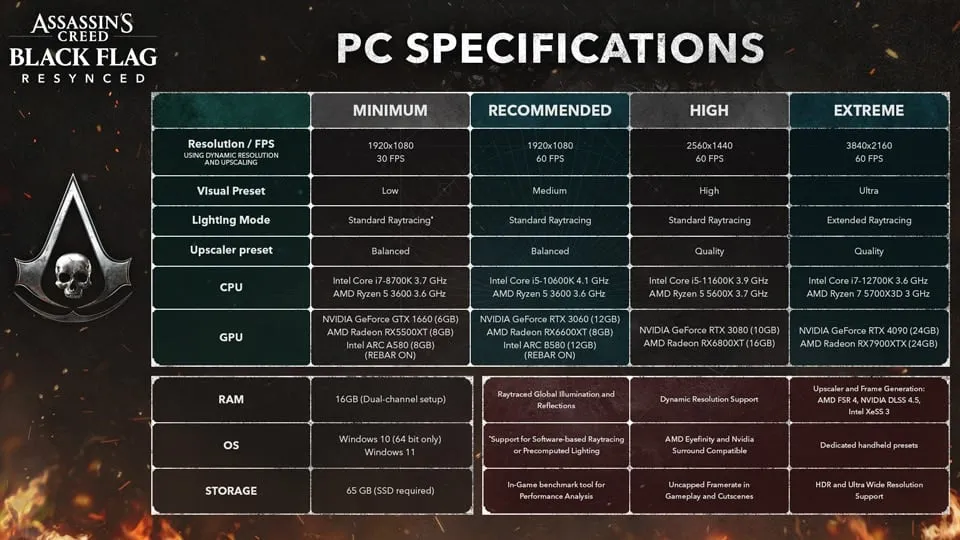
Ubisoft lists graphics presets for handheld devices among the PC features. Use that setting before changing individual quality options. Presets are valuable because they establish a coherent set of tradeoffs; raising one attractive slider without understanding its cost is how a stable portable setup turns into a frustrating one.
Use this order:
- Install the game and Deck updates on a reliable connection.
- Launch the game once online and let its first-run work finish.
- Select the handheld graphics preset.
- Play a busy city section, a naval encounter, and a cutscene rather than judging only a quiet menu.
- Change one preference at a time only after you have a baseline.
Do not copy desktop Ultra High recommendations to a handheld just because the image looks good in a screenshot. Ubisoft’s documented PC cutscene issue can be triggered by manually forcing Ray Tracing, BVH, or Terrain Quality to Ultra High. Those settings are not a sensible first experiment on Steam Deck either. If cinematics lock to 30 FPS after hand-tuning, reset to a supplied preset and read the PC known issues guide.
Storage and installation are the unglamorous part
The official PC requirements list a 65 GB SSD install. Leave extra capacity beyond that headline number for updates, shader data, temporary files, and normal Deck housekeeping. A full internal drive or microSD card makes troubleshooting far less clear: you cannot tell whether a performance hitch, failed update, or save-sync delay is the game or simply a device with no room left to work.
Install to storage you trust, then verify the game can open and load a save before a trip. A large game that is technically installed but has never reached the title screen is not travel-ready.
Offline preparation on Deck
Ubisoft says PC needs a one-time online connection for installation and supports offline single-player play afterward. Steam Deck does not change that condition. Prepare the actual Deck, not a desktop account, with this checklist:
- Install and update the game while connected.
- Launch into gameplay and create or load a save.
- Exit normally so the save can finish writing or syncing.
- Enable Steam’s supported Offline Mode while you still have a connection.
- Disconnect and perform one real relaunch test.
This is worth doing even when the label says Verified. Compatibility answers whether the game works on the device; offline readiness also depends on the launcher state, recent account sign-in, and whether the local save is truly present. The ten-minute test at home is cheaper than discovering a login prompt when your connection is gone.
What to adjust, and what not to promise
It is reasonable to adjust controls, display brightness, text size, and a single graphics preference after testing. It is not responsible to publish a universal 40 FPS, 30 FPS, battery-life, or temperature guarantee without reproducible current measurements. Ubisoft’s official material supports the Deck status and handheld preset; it does not give a mandatory manual performance recipe.
That restraint is useful editorially. A guide that says “start from the preset and test your demanding scenes” remains correct when a patch improves performance. A page that presents one copied configuration as fact becomes stale the moment the game changes.
The practical recommendation
Install to an SSD with headroom, use the handheld preset, avoid forcing the three documented Ultra High trouble settings, and run one offline launch test on the Deck itself. That gives you a supported baseline with less risk than chasing an internet tweak before you have played a single proper voyage.
For activation details, see offline play and one-time activation. For the wider platform picture, see platforms and features.
Sources
← Back to Guides